10 Best Planner iPhone Apps for ADHD Brains in 2026
Discover the best planner iPhone apps for ADHD minds, ranked on reliability, focus support, and ease of use, with setup templates and daily workflows.
Jan Kutschera
Monday morning. Your to-do list is color-coded, beautifully organized, and contains forty items. You’ve still missed two meetings, and now opening the app feels a little like being judged by a very small, very efficient manager.
The problem usually isn’t a lack of features. It’s that many planners work well only when your attention stays steady and the day behaves. When focus wobbles, a task gets missed, or a colleague needs to take something over, the plan can fail without anyone noticing.
The best planner iPhone users can choose isn’t necessarily the one with the longest feature list. It’s the one that helps you recover when work slips, keeps time visible when a list turns abstract, and makes a handoff clear enough that someone else can act. Those are the three failure points behind the scores below. They’re practical comparisons, not clinical measures.
If your wider system also needs help protecting focus, start with a focus guide for small business owners. Then choose one app that solves the problem you have. Get to the list quickly, and don’t mistake more settings for more support.
Table of Contents
- 1. Tiimo
- 2. Structured
- 3. Todoist
- 4. TickTick
- 5. Things 3
- 6. Fantastical
- 7. Motion
- 8. Sunsama
- 9. Apple Calendar
- 10. Planmore
- How the ten iPhone planners compare on planning style, pricing, and best use
- Pick One, Set It Up Once, and Protect It for 30 Days
1. Tiimo
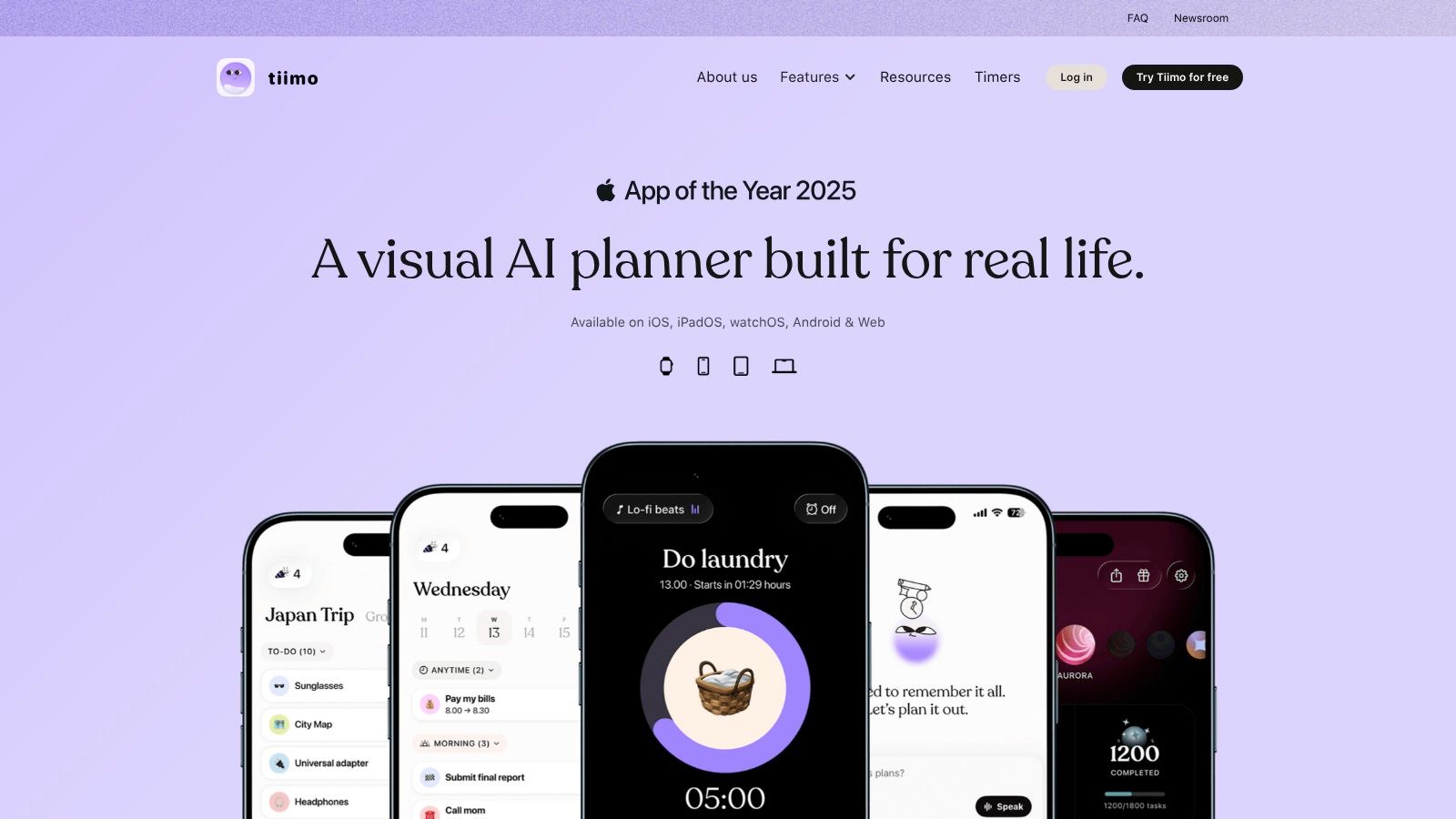
Tiimo turns the day into something you can see. The unit of work is a block on a timeline with a routine attached, which helps when “finish the proposal” feels like weather and “open the draft” is an actual action.
The design is built for brains that need cues more than catalogs: visual routines, gentle reminders, a focus timer, and an AI co-planner. Apple Calendar and Reminders can sit inside the same view, so appointments stop living in a witness protection program. Its U.S. App Store listing shows a 4.6/5 rating from about 21,000 ratings (Tiimo on the App Store). Treat that as a satisfaction signal, not proof it will fix a Tuesday.
Failure-point scores
Missed-task rescue: Good. A reminder plus the co-planner can pull an overlooked task back into the present. The test that matters is ugly and practical: can you shove it to 3:40 without rewriting the whole day? Tiimo usually lets you.
Time visibility: Strong. This is the reason to use it. Color and sequence make the next move obvious when a flat list would turn into soup.
Handoff: Limited. Tiimo will remind you to tell Maya the file is late; it will not make Maya accountable for the file. Before delegating, paste the outcome, deadline, and link into your shared tool, then keep only your own next step here.
Configuration template: Build one morning routine, schedule only the next two work blocks, and set reminders for transitions that vanish during hyperfocus. Keep recurring habits sparse; a notification for everything becomes noise with branding.
The full feature set may require Pro, and the visual style will either feel calm or like a kindergarten whiteboard. If your bottleneck is bigger than one planner, compare it with this guide to ADHD management apps. Try Tiimo if seeing the next step matters more than seeing every task you ever captured.
2. Structured
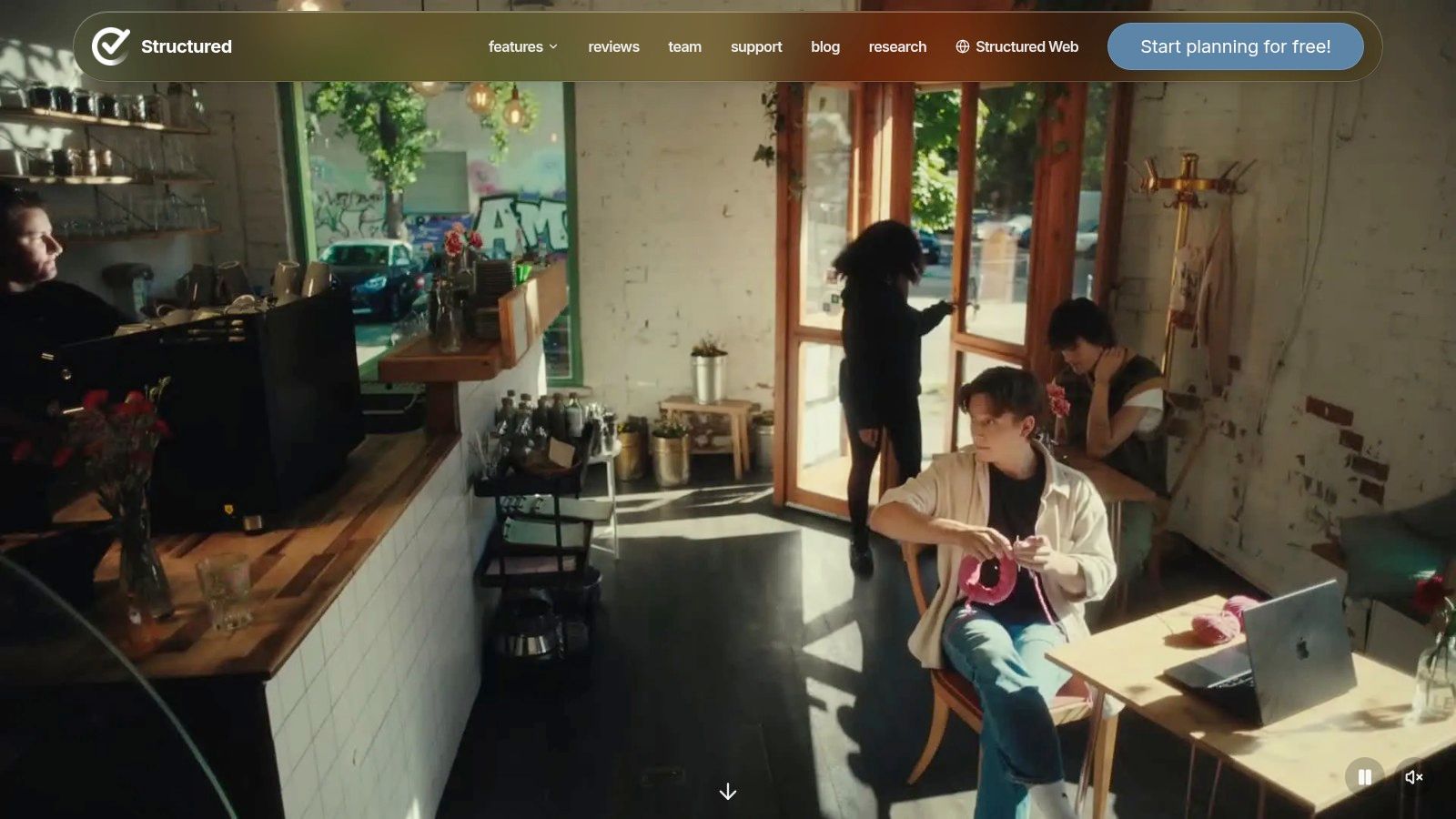
Structured puts tasks and calendar events on one daily timeline. That makes it easier to answer a useful question: what happens next? Drag-and-drop planning, an inbox, recurring tasks, and the Replan feature can help you rearrange a day when a meeting runs over or a task doesn’t happen when intended.
Its U.S. App Store listing reports a 4.8/5 rating from about 168,000 ratings, a strong adoption and satisfaction signal, not a controlled usability study (Structured’s App Store overview). Some features, including calendar imports and Replan, require Pro.
Failure-point scores
Missed-task rescue: Strong. Replanning gives you a way to move an unfinished task rather than leaving it marooned in yesterday’s plan. Don’t use that as permission to schedule every available minute.
Time visibility: Strong. A timeline puts meetings, routines, and work blocks together. That’s useful when a list tells you what to do but not when you meant to do it.
Handoff: Limited. Structured is primarily a solo planner. Keep team assignments in a shared project tool or calendar, then use the personal timeline to protect your own execution time.
Practical rule: When rescheduling, decide whether the task still matters before moving it. A task that gets dragged forward repeatedly may be a vague commitment, not a scheduling problem.
Structured can feel rigid if you prefer loose lists. It also puts some planning features behind Pro. If you like color as a way to scan a timeline, keep the palette small and consistent. This guide to planner color-coding can help you avoid turning the schedule into a highlighter collection.
Try Structured if you want a clear day view and a deliberate way to recover when the plan slips.
3. Todoist
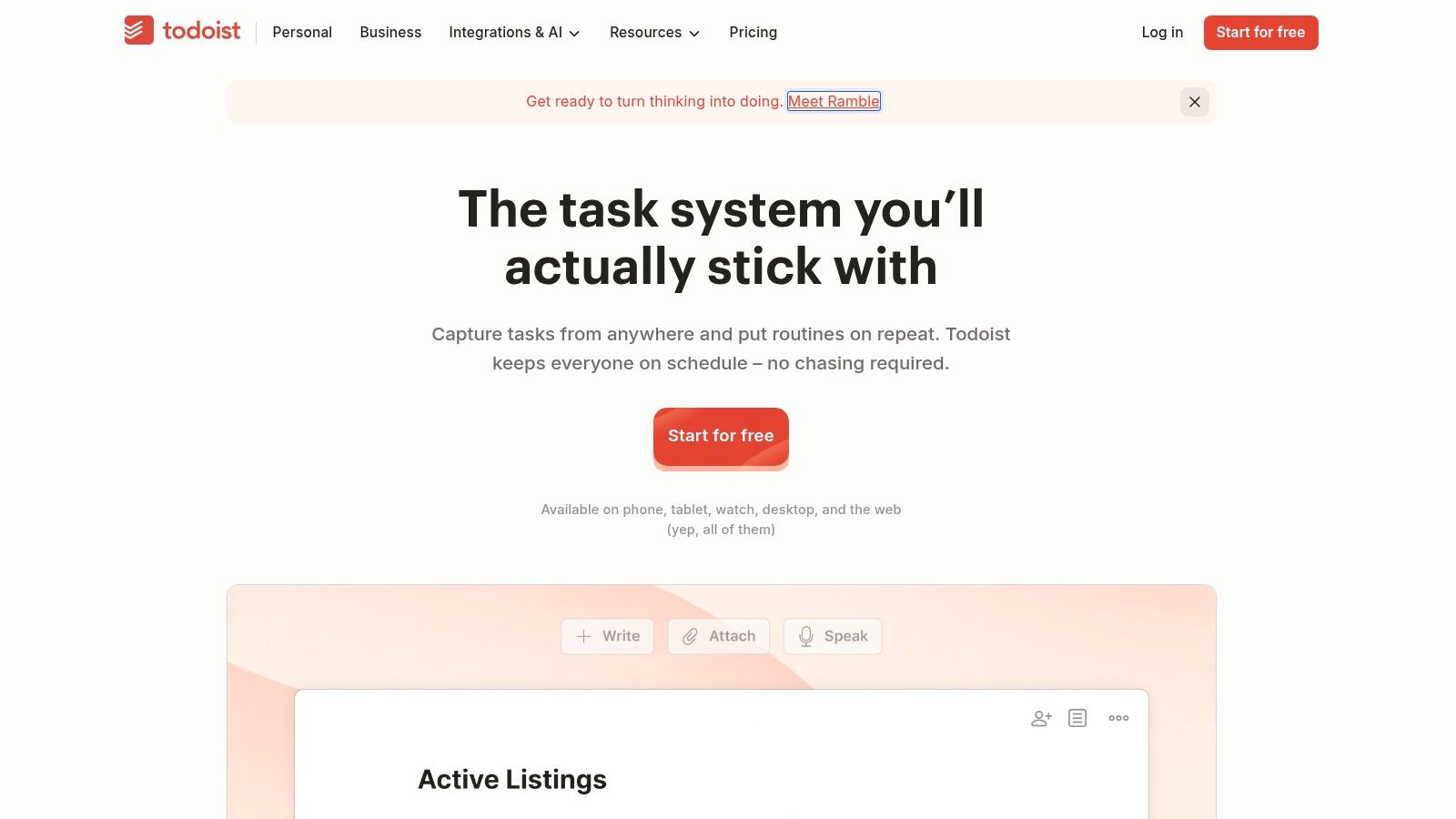
Todoist works best when the main failure is capture. An idea arrives during a meeting, you need to record it quickly, and you don’t want to stop and build a miniature project-management system first. Natural-language entry, projects, recurring tasks, labels, and Today and Upcoming views help keep the task layer organized.
It isn’t primarily a calendar-first planner. You can use it alongside a calendar for time-blocking, but the calendar layout and task durations are part of the Pro feature set. Shared projects and task assignments also make it more useful for team work than a strictly personal list.
Failure-point scores
Missed-task rescue: Good. Today and Upcoming views provide a place to review what’s due, and recurring tasks reduce repeated manual entry. They won’t decide whether an overdue item still deserves your attention.
Time visibility: Fair. Todoist organizes tasks well, but time-blocking is less central than it is in a dedicated visual planner. Pair it with a calendar if seeing the shape of the day helps you start.
Handoff: Strong. Shared projects and assignments give another person ownership of a task, which is more useful than forwarding a message with “Can you handle this?” and hoping for the best.
Use a simple project structure: one project for active client work, one for operations, and one personal list. Capture first, sort later. Filters and labels are useful when they answer a real question, such as “What am I waiting on?” They’re less useful when they become another weekend of system design.
The trade-off is clear. Todoist is quick to capture and flexible enough to organize different kinds of work, but more advanced calendar and organization features require a paid plan. If meetings dominate your day, don’t mistake a clean task list for a complete schedule.
Try Todoist if you need one task system across work and personal projects, and your calendar can remain a separate source of time truth.
4. TickTick
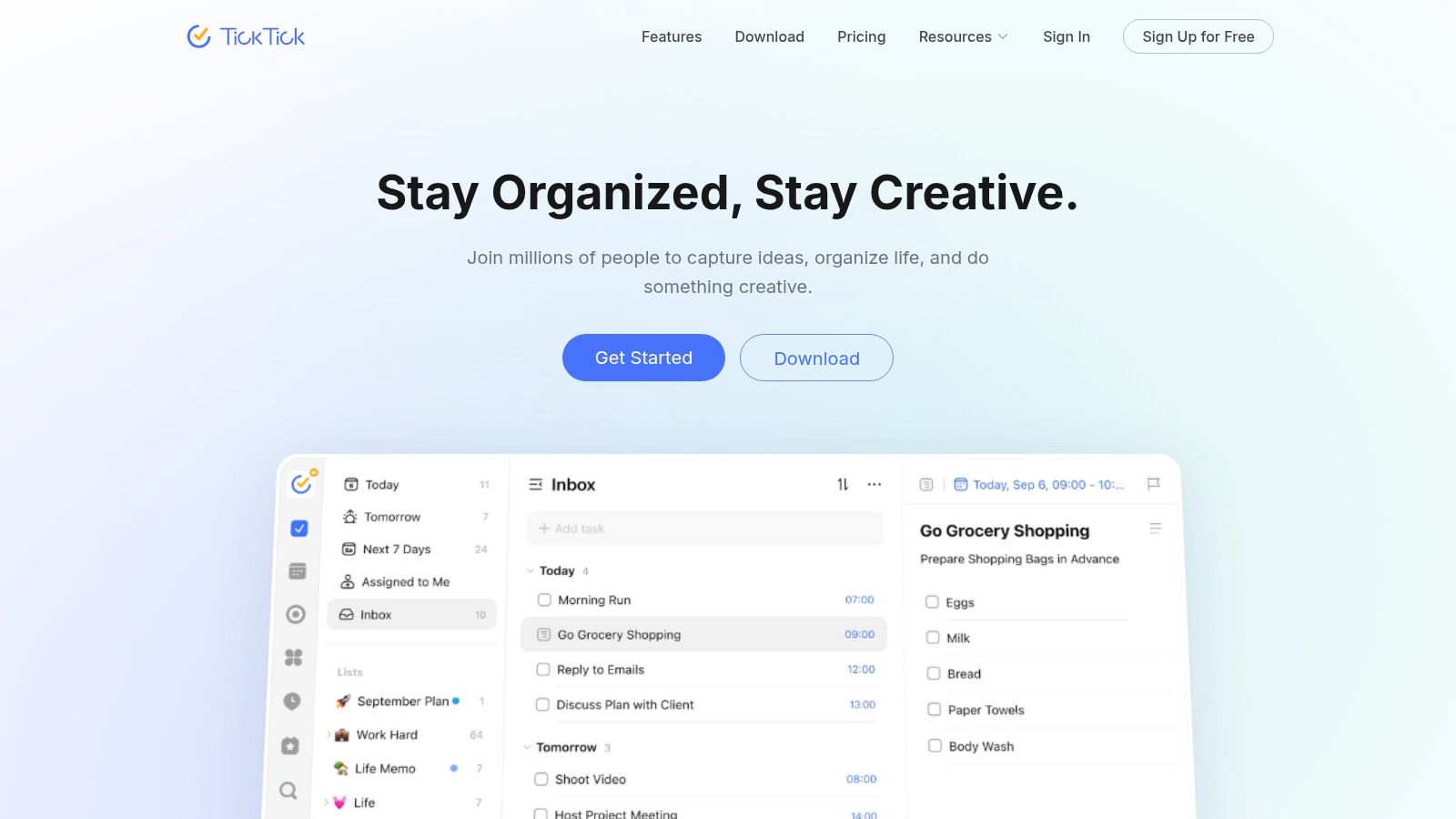
TickTick puts several common planning tools in one app: tasks, recurring schedules, reminders, calendar views, a focus timer, and habit tracking. That can cut down on app-switching. It can also produce an interface with enough options to keep a person busy configuring their productivity instead of doing the task. Familiar trap. Better icons.
Its calendar views help combine appointments with tasks, while multiple reminders and flexible recurring schedules support routines that need more than a single alert. Full calendar functionality requires Premium, so check whether the free setup covers your daily workflow before moving everything into it.
Failure-point scores
Missed-task rescue: Good. Recurring schedules and reminders help tasks return at the right time. They can’t rescue a task you’ve buried under several competing views.
Time visibility: Strong. The calendar and task views bring appointments and planned work closer together. Use the calendar for commitments, not as proof that every available minute is usable.
Handoff: Fair. Shared task lists help with basic collaboration. For work with complex ownership or multiple dependencies, keep the team’s project system in charge.
Start with three pieces: a task list, a calendar view, and the focus timer. Add habit tracking only if you’ll use it to support a routine that matters. TickTick’s combination of tools is convenient, but the app’s breadth can make it feel busy. A small setup is easier to maintain than an elaborate one that needs its own administrator.
If focus intervals help you begin work, choose a timer pattern you can tolerate and keep the task attached to the session. This guide to the Pomodoro technique for ADHD can help you think through whether timed sessions suit your working style.
TickTick offers a free tier, while full calendar functionality requires Premium. That makes it reasonable to try the basics before deciding whether the paid calendar features solve a real problem.
Try TickTick if you want tasks, timers, and calendar planning close together, and you’re willing to resist configuring every available feature.
5. Things 3
Things 3 is a personal task manager that keeps the interface relatively calm while offering structure underneath. Projects, areas, headings, checklists, tags, and deadlines give you ways to organize work without forcing every task into a shared team workflow.
Its Today, Upcoming, Anytime, and Someday views make it easier to separate immediate work from tasks that don’t belong on today’s list. The result is a useful distinction for people who treat every captured task as if it needs attention right now. It doesn’t need a subscription, but the iPad and Mac apps are sold separately from the iPhone app.
Failure-point scores
Missed-task rescue: Fair. The different planning views make it possible to revisit tasks and decide what belongs today. There’s no dedicated team-style recovery process, so overdue work still needs your review.
Time visibility: Fair. Things can support a daily task plan, but it’s not a visual time-blocking system. If knowing when you’ll work is the missing piece, pair it with a calendar.
Handoff: Weak. Things is designed for personal task management, not real-time collaboration or shared lists. Use it to clarify your own next action, then put delegated work somewhere the recipient can see and update.
Don’t use a personal task manager as a team inbox. Write down your responsibility, the owner you need, and the next handoff destination.
Things syncs across Things devices through Things Cloud and includes Apple Watch support with the iPhone purchase. The trade-off is platform reach: it’s Apple-only, with no Android, Windows, or web app. If your work depends on colleagues using other systems, that boundary matters more than a tidy interface.
Try Things 3 if you want a focused personal system and don’t need collaborators to work inside it.
6. Fantastical
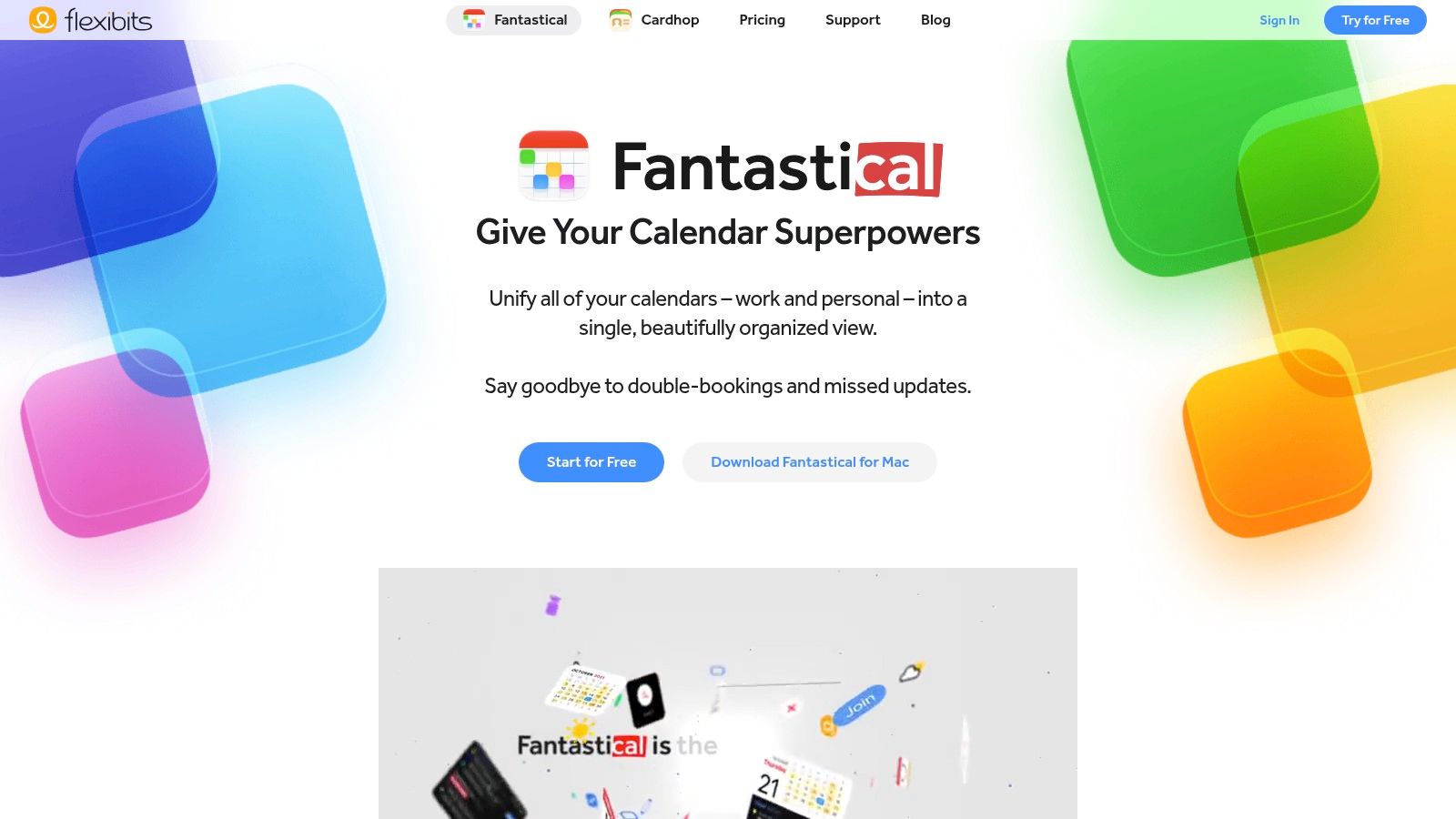
Fantastical is for people whose planning problem starts with the calendar. It offers day, week, month, quarter, and year views, natural-language event and task entry, and support for a range of calendar accounts and task services. Meeting proposals, availability scheduling, and conference links make it useful when the schedule itself creates administrative work.
It can also display tasks from supported services, which is helpful when you want to see commitments alongside appointments. But a calendar with tasks shown inside it still isn’t a complete project-management system. Keep task ownership and project details where your team can maintain them.
Failure-point scores
Missed-task rescue: Fair. A broader calendar view can make upcoming commitments easier to spot. The app won’t automatically solve an overloaded day or decide which unfinished task should move.
Time visibility: Strong. Multiple views and support for several calendar services make it easier to inspect a complex schedule. That’s particularly useful if you regularly switch between work and personal calendars.
Handoff: Good for scheduling, limited for execution. Meeting proposals and availability tools help coordinate people. They don’t replace shared project tasks or clear delivery ownership.
Fantastical offers free basic use and a Premium trial, while some of its more useful features require a subscription. Before paying, ask whether you need the scheduling and calendar tools often enough to justify another ongoing system. A feature-rich calendar can make a crowded day easier to inspect; it can’t make the day less crowded.
Try Fantastical if appointments, availability, and several calendar accounts are the center of your planning problem.
7. Motion
Motion tries to fit tasks around calendar commitments using automated scheduling. That can help when priorities change often and you want assistance rebuilding the day instead of manually dragging every task into a new slot. It combines calendar planning with project and task management, and it can also support small teams.
That wider scope comes with more setup and system complexity than many people need from an iPhone planner. Motion is better approached as a work-management tool that has a mobile app, not as a lightweight daily list with a clever calendar attached.
Failure-point scores
Missed-task rescue: Strong in principle. Automated scheduling can help rebuild the day when priorities shift. Check that the resulting plan still reflects your actual capacity, rather than treating every open calendar slot as work time.
Time visibility: Strong. Tasks and calendar commitments live in the same planning environment, so you can inspect the work alongside the schedule.
Handoff: Good. Motion includes project and task management, with team features available on higher tiers. Use those tools only if your team will maintain ownership and updates there.
The practical risk is adopting a large system to solve a small problem. If all you need is a personal next-action list, Motion’s additional planning machinery may become overhead. If a team needs a shared work view and frequent schedule changes already create coordination problems, that complexity may be worthwhile.
Motion lists a free trial, but no ongoing free plan. Consider a narrow trial using one active project and a real calendar. See whether automated rescheduling helps you recover, and whether collaborators can understand the plan without needing you to explain it live.
Try Motion if changing priorities are a daily operating condition and you want task scheduling and project work in one system.
8. Sunsama
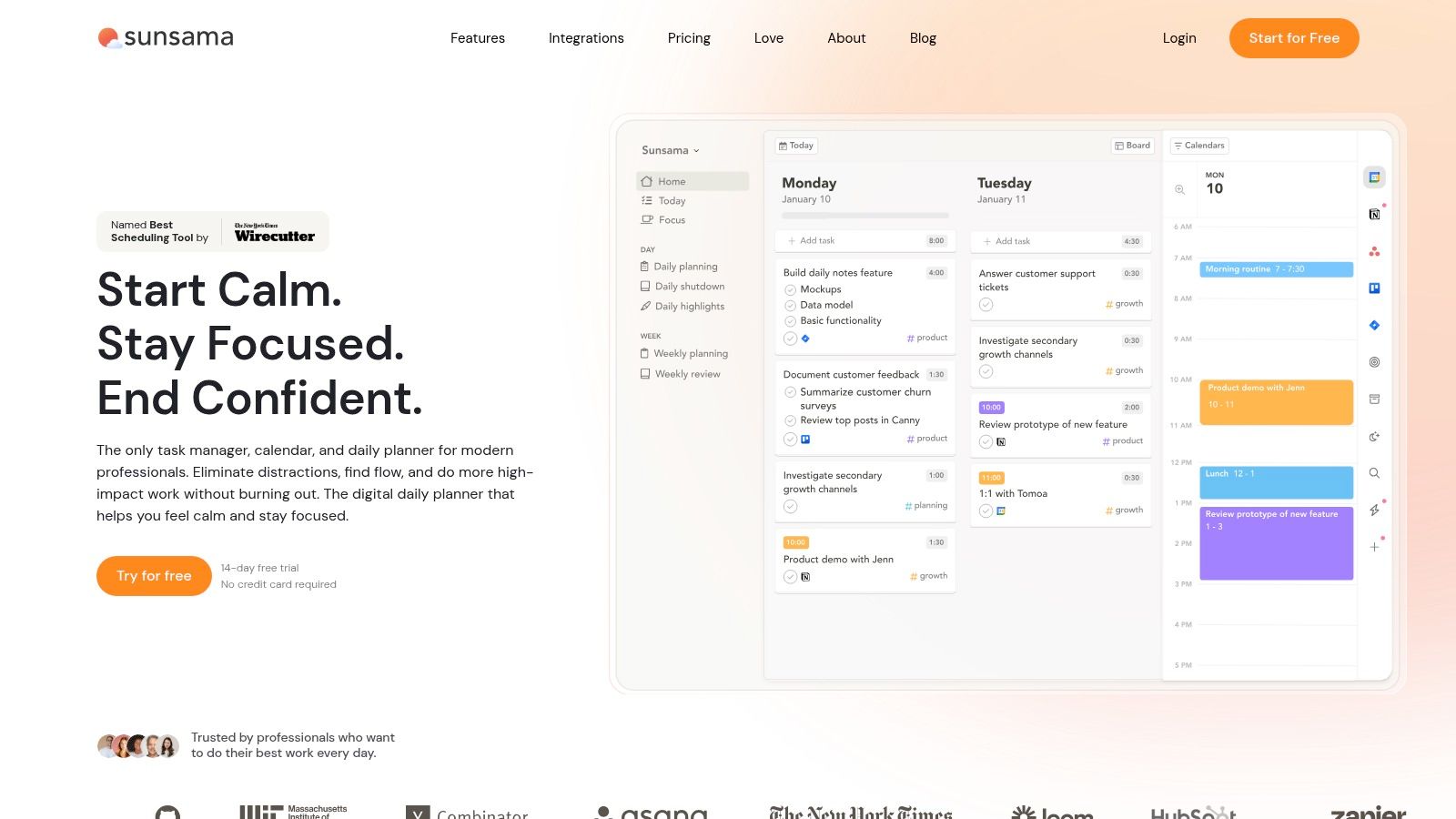
Sunsama is a guided daily planner built around bringing tasks and calendar events together, choosing a realistic workload, and planning the workday intentionally. Daily planning and shutdown rituals offer useful bookends: decide what belongs in the day, then review what needs to move rather than leaving a trail of silent carryovers.
The important limitation is the phone experience. Sunsama’s iPhone app is a companion to its desktop workflow, not a full standalone replacement. That can work if you plan at a desk and need mobile capture or review. It’s less suitable if the iPhone is where you do nearly all of your planning.
Failure-point scores
Missed-task rescue: Good. A guided review gives you a deliberate moment to renegotiate unfinished tasks, rather than pretending they’ll somehow fit tomorrow.
Time visibility: Strong. Time-blocking tasks into the calendar helps make capacity visible before the day is full.
Handoff: Fair. Integrations help bring tasks from connected work tools into planning, but Sunsama isn’t a substitute for a shared team system with clear ownership.
Sunsama’s listed U.S. App Store rating is 4.5/5 from roughly 500 ratings. Treat that as a limited satisfaction signal, not proof that its routines will suit your working style. Its subscription cost may also feel high if you mainly want a mobile task list.
A useful test is whether the daily ritual improves your decisions or just adds another ritual to maintain. Keep the plan short. Put a few important tasks on the calendar, leave room for unpredictable work, and use shutdown to choose what should move.
Try Sunsama if you want a guided planning routine and are comfortable using the phone app as a companion to desktop planning.
9. Apple Calendar
Apple Calendar earns its place here by doing less than everything else on this list. It handles appointments, shared calendars, color coding, Siri event creation, alerts, and widgets, and it comes preinstalled on iPhone, iPad, Mac, and Apple Watch. No account to create, no subscription to justify. For a lot of people, that’s all they need: knowing where they need to be and when.
Where it stops is follow-through. A calendar shows commitments. It won’t chase a task you ignored at 4 p.m., and it won’t break a project into next actions. That’s the honest ceiling, and it decides whether you need a second app alongside it.
Failure-point scores
Missed-task rescue: Limited alone. An alert fires once, then the event slides into the past. Rescuing dropped work needs Reminders, a separate task app, or a fixed daily review habit you consistently keep.
Time visibility: Good. Widgets and calendar views put upcoming commitments on the home screen without requiring a new planning tool. Blocking focus time as an appointment makes capacity visible before you overbook it.
Handoff: Good for calendar visibility, limited for task ownership. Shared calendars show collaborators when you’re booked. They don’t say who owns a piece of work or whether it’s finished.
Use it as the source of truth for meetings, client calls, and protected work blocks. Add Apple Reminders when you want smaller follow-ups surfacing next to your day, and reach for a dedicated task app once you need decomposition, delegation, or anything more demanding than a single nudge.
Configuration template: Keep separate work and personal calendars, put a next-event widget on the home screen, and schedule deep work as an appointment. Deliverables and next actions live in a task system, not in event titles.
Try Apple Calendar if you want a simple calendar foundation with zero setup, not a complete executive-function support system.
10. Planmore
Paper planner people, this one is for you. Planmore lays out calendars, tasks, reminders, and notes on pages that resemble a bound agenda. The developer advertises day, week, month, and year views along with Apple Reminders integration and iCloud sync, so confirm the ones you rely on during the free download before you commit.
The app is free to download with in-app purchases, and the store listing does not spell out exactly which functions sit behind the paywall. Check the upgrade screen early. Spending an evening rebuilding your planning system inside an app, then hitting a locked feature, is a tax you can avoid with two minutes of inspection.
Failure-point scores
Missed-task rescue: Fair. Tasks, reminders, and notes share a page with your schedule, so a weekly review catches stragglers faster than a split system does. Nothing hunts down dropped items for you.
Time visibility: Good. Moving between the day’s agenda and the month view keeps near deadlines and far commitments in the same frame.
Handoff: Limited. Planmore plans for one person. There is no shared workspace, so delegation means writing the owner and next action into whatever system your team already checks.
Set it up the way the format wants: one page per day, fixed slots for recurring commitments, and a single running list in notes. For anything you delegate, mirror the task in your team’s shared list while Planmore stays your personal command sheet.
Try Planmore if you think in day-planner pages and want every planning artifact on one sheet. Skip it if you need software that chases missed tasks by itself.
How the ten iPhone planners compare on planning style, pricing, and best use
| Item | Planning Style | Pricing Model | Best For |
|---|---|---|---|
| Tiimo | Visual daily schedules, routines, and AI-assisted planning | Free tier with paid Pro features | Neurodivergent users who benefit from visual structure |
| Structured | Drag-and-drop daily timeline with tasks and calendar events | Free tier with paid Pro features | People who want to plan tasks and meetings on one timeline |
| Todoist | Task- and project-focused planning with optional calendar views | Free tier with paid Pro features | Organizing work and personal tasks across devices |
| TickTick | All-in-one tasks, calendar, habits, and focus timer | Free tier; Premium required for full calendar features | People who want several planning tools in one app |
| Things 3 | Focused personal task management with Today and project views | One-time purchase per platform; iPad and Mac sold separately | Apple users who want a clean, subscription-free task manager |
| Fantastical | Calendar-first planning with events, tasks, and multiple views | Free basic use with paid Premium subscription | People managing appointments and multiple calendars |
| Motion | AI-assisted scheduling for tasks, projects, and calendar commitments | Paid subscription with free trial | Individuals or teams who want tasks automatically scheduled |
| Sunsama | Guided daily and weekly planning with time-blocking rituals | Paid subscription | People who want a structured workday planning routine |
| Apple Calendar | Simple calendar planning with alerts and account syncing | Included with iPhone | Users who need a straightforward calendar with minimal setup |
| Planmore | Paper-planner-style calendar, tasks, reminders, and notes | Free use with in-app purchases for advanced features | Users who prefer a traditional agenda layout |
Pick One, Set It Up Once, and Protect It for 30 Days
Choose the app that rescues your worst failure point, not the app with the longest feature list. If missed tasks disappear into a backlog, favor a planner with a clear recovery flow. If you lose track of time, choose a visible timeline or calendar. If work breaks down at handoff, prioritize shared ownership and keep the team’s existing workflow in view.
Give your choice 30 days before adding another tool. Use one daily planning ritual to decide what matters and when you’ll work on it. Use one weekly review to remove stale tasks, renegotiate deadlines, and prepare the next week. Add one handoff template that states the owner, the outcome, and the next check-in. That’s enough structure to test whether the app reduces friction without making you manage the system all day.
Treat the first setup as a working draft. Start with the calendar accounts you already use, a small number of task lists, and only the reminders you’ll notice. If you keep changing colors, tags, and views but avoid doing the work, simplify. A planner should make your next action easier to find, not reward elaborate configuration.
For a founder or operator, the personal planner is only one layer of the operating system. You still need a way to capture work, protect focus, decide what belongs with someone else, and keep commitments visible to the team. If the planner is only one piece of that setup, Jan Kutschera’s Starter Kit at adhd-founder.com covers the wider system, from cognitive architecture to delegation, for founders who want an approach built for their wiring.
After a month, ask a blunt question: did the plan survive a bad day? If it helped you recover from a missed task, see the next commitment, or hand work to a colleague without a rescue meeting, keep it. If not, change the app or reduce the system. The goal isn’t a perfect schedule. It’s a plan that remains useful when the morning goes sideways.
Jan Kutschera helps founders with ADHD build practical operating systems for focus, planning, and delegation. If your planner needs to work as part of a wider business system, visit Jan Kutschera to explore the Starter Kit and other support.
Jan Kutschera
German founder, diagnosed with ADHD at 51. Built 4 agencies, now building systems for neurodivergent entrepreneurs. German engineering for the ADHD brain.
Connect on LinkedInRelated Articles
How to Manage Multiple Projects with ADHD
Learn how to manage multiple projects with ADHD: set boundaries, build external systems, delegate and batch your week without burning out.
Making a Daily Schedule That Fits an ADHD Brain
Learn making a daily schedule around your ADHD energy peaks, with time blocks, rituals, decision-cutting templates and a plan that survives bad days.

Best ADHD Planner App for Founders: 10 Ranked Picks
Searching for the best ADHD planner app? We rank 10 founder-tested options on executive-function support, delegation, sync, privacy and pricing.